| < Previous page | Next page > |
Step 1Click on the Voice Over tab in the sound section of the main iKITMovie interface.
This will bring up the section of the interface shown below so that you can name and make a recording of your voice.
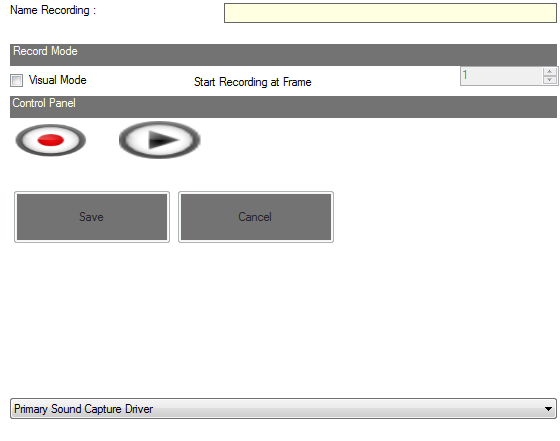 Step 2Check to see if you have a microphone attached to your PC by clicking on the "Primary Sound Capture Driver" box.
A selection of microphones will be shown in the list assuming you have some form of microphone attached.
Step 3Name your recording at this point in order to allow you begin recording in the "Name Recordign Box"
In my case I decided to call this voice recording "My Name is Darth".
It can be helpful to name the voice recording with a hint to what is being said in the voiceover!

Step 4 Now you have named your voiceover you can click on the red Record button to begin recording.

Click on the red button once again to stop recording.
You can click on the play button to hear what you have recorded.
Step 5If you are happy with what you have recorded you can click on the Save button to add the voiceover to your databank of Voiceovers.Step 6Now drag and drop the voiceover from that list on to your voiceover timeline in the location you prefer. |