| < Previous page | Next page > |
Deleting Frames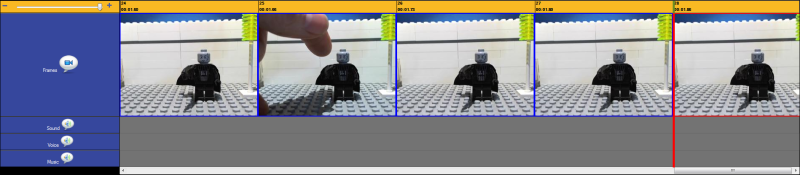
If you have for example left your hand onscreen for one of the snapshots you can easily delete it as follows:
1- Select the frame you want to delete by left mouse clicking once on it. It will highlight in red once chosen.
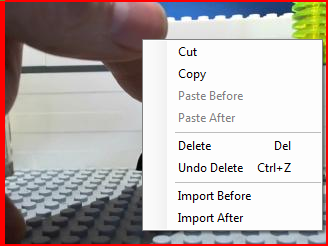
2- Once highlighted "right mouse click" to bring up the floating menu.
 Copying Frames
If you want to copy a frame (image) to another location you can do it as follows:
1- Select the frame you want to copy by left mouse clicking once on it. It will highlight in red once chosen.
2- Once highlighted "right mouse click" to bring up the floating menu
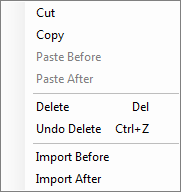
3 - Choose Copy.
Now you can paste the copied image where you wish by clicking on the location you wish to copy it.
Then bring up the floating menu and choose paste after or paste before the currently selected frame.
Copying Multiple Frames
If you want to copy a number of frames (images) to another location you can do it as follows:
1- Select the first frame in the sequence of frames you want to copy by left mouse clicking once on it.
It will highlight in red once chosen.
2 - Now press and hold down the "shift key"
 on the left hand side of the keyboard. on the left hand side of the keyboard.
3 - With the shift key pressed use your left mouse click to select the last frame in the sequence of images you want to
copy.

The series of images should now be shown as all hightlighted in red. ( Now release the shift key )
4 - Next right mouse click to bring up the floating menu
5 - Now choose "Copy" from the menu.
6 - Now you can paste the copied images where you wish by clicking on the location you wish to copy it.
Then bring up the floating menu and choose paste after or paste before the currently selected frame.
|